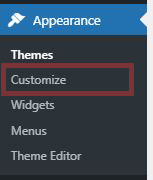
- Go to “Appearance” -> “Customize,” this will take you to the Customize page.
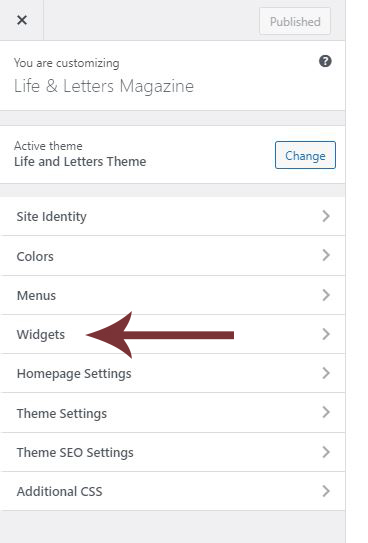
2. In the customize page, go to “Widgets”
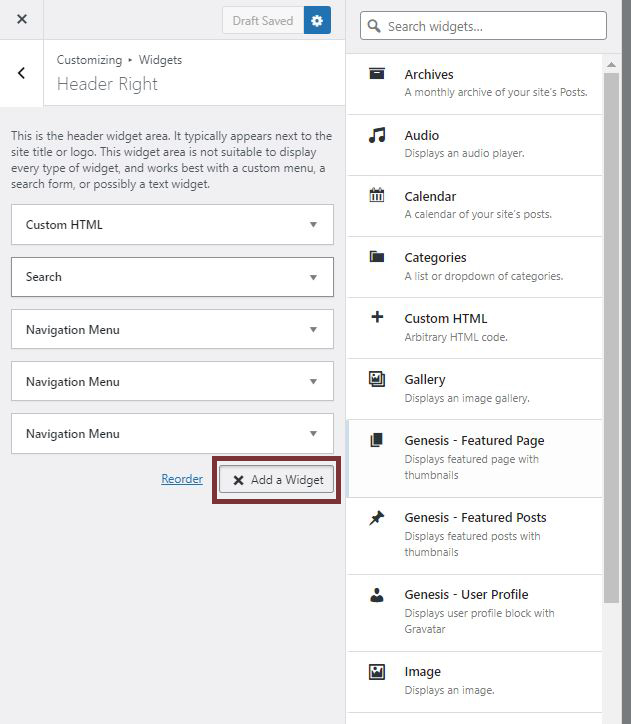
3. For “Header Right,”
- “Custom HTML” is for closing the menu bar, which is the “x” at the top right corner.
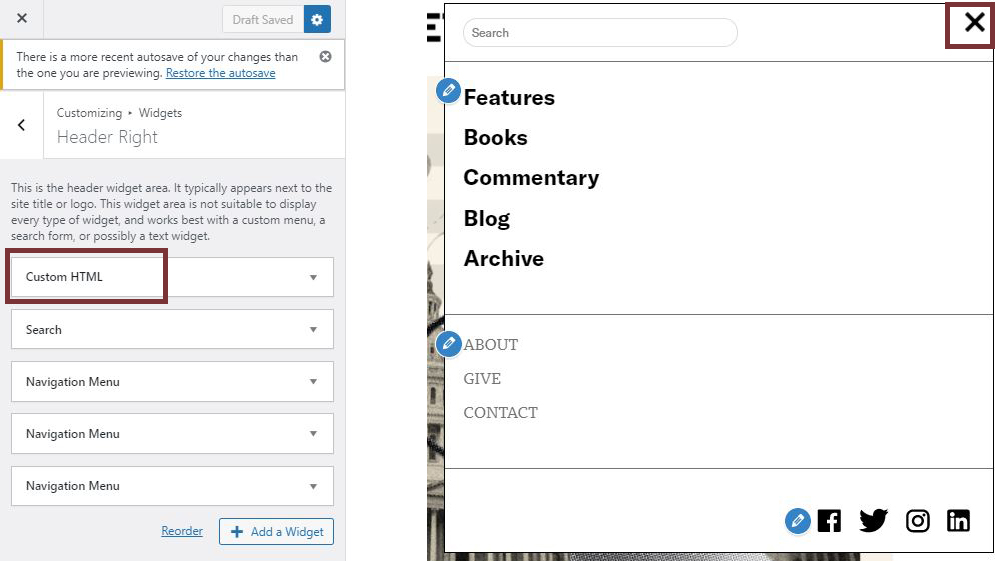
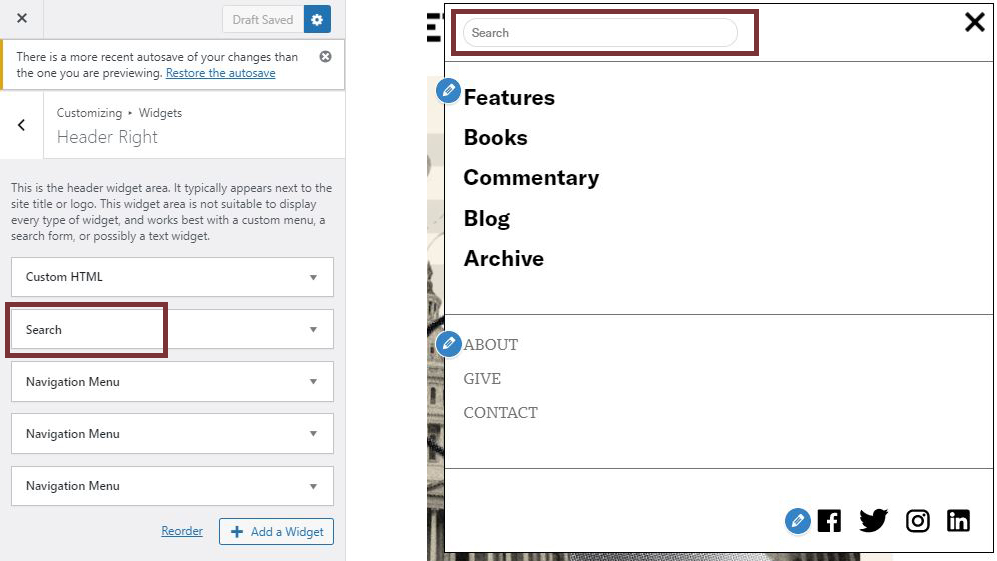
- “Search” is the search bar at the top of the menu.
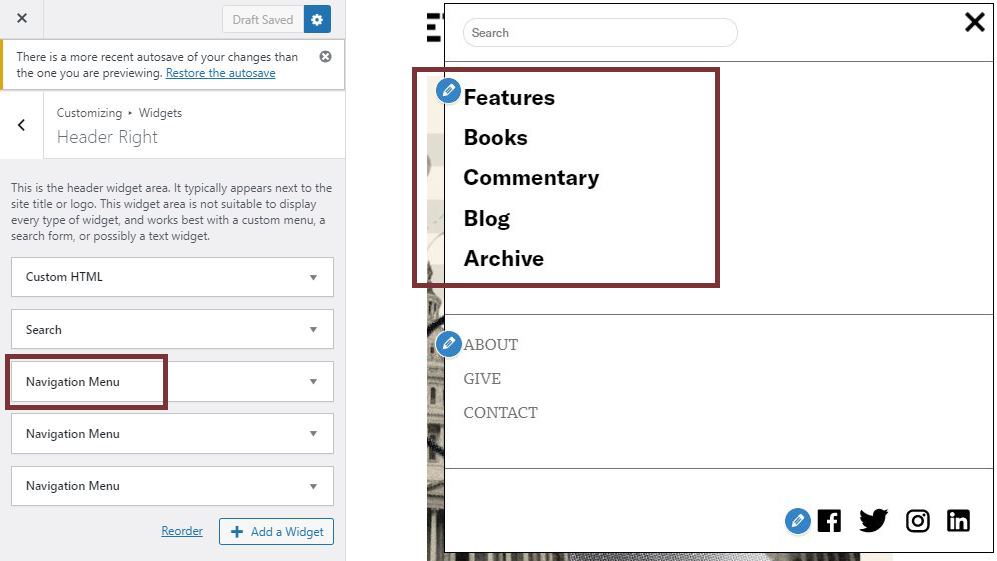
- The first “Navigation Menu” is the primary menu.
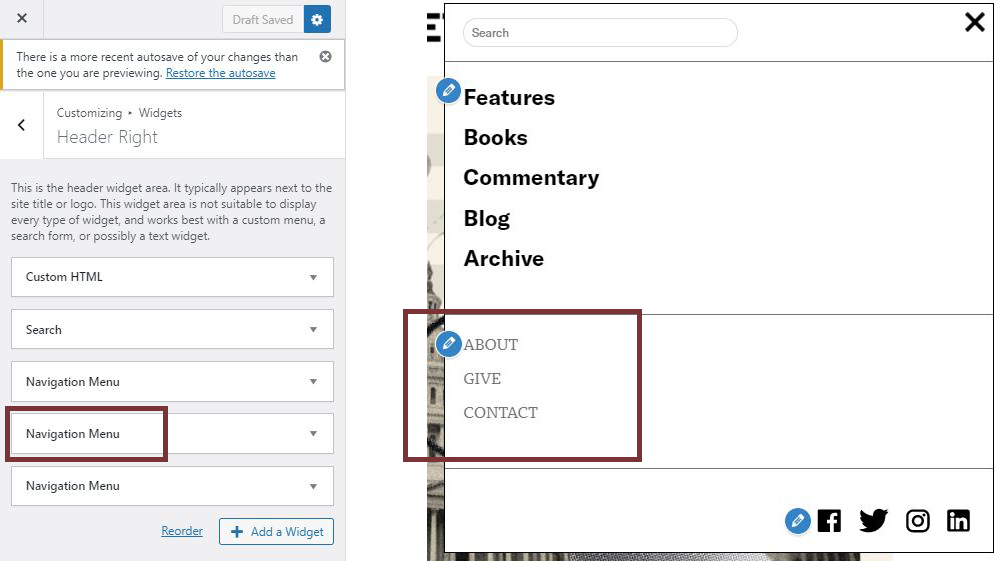
- The second “Navigation Menu” is the secondary menu.
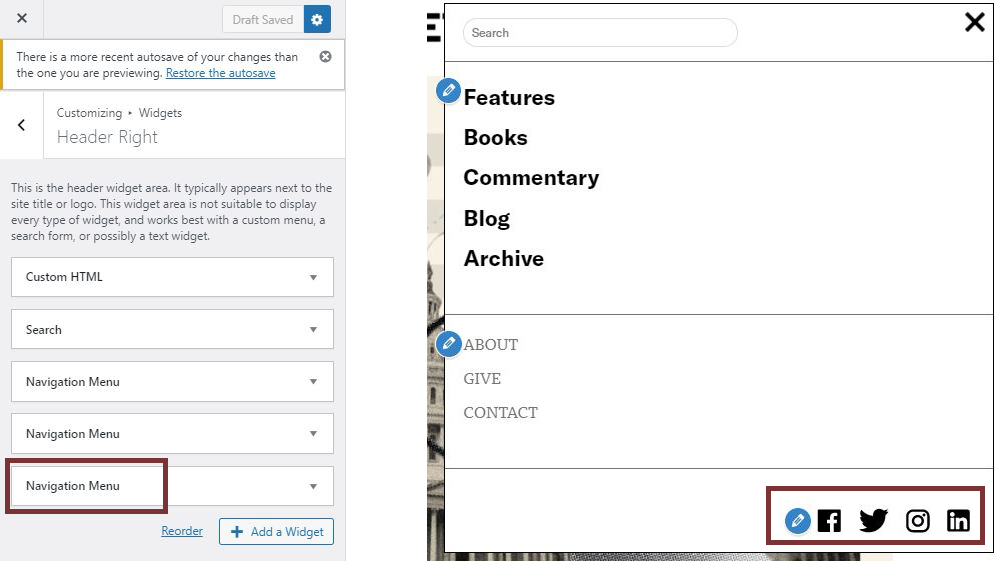
- The third “Navigation Menu” is the social menu.
4. To reorder these widgets, click and drag to move them on top or below each other.
5. To add a widget, click on “Add a Widget” and select the widget you would like to add.
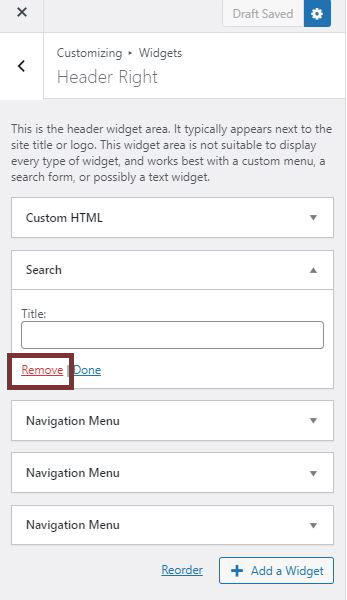
6. To remove a widget, click on “Remove”
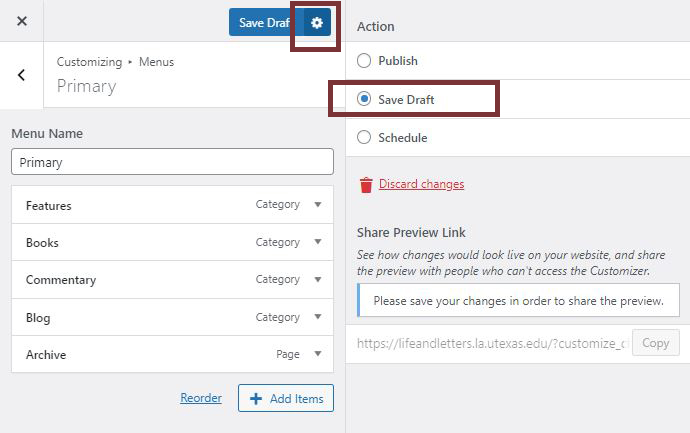
7. If changes you made do not show up on the right immediately, you can save it as a draft to refresh the page. To save a draft, click on the gear icon next to the “Publish” button and select “Save Draft.”
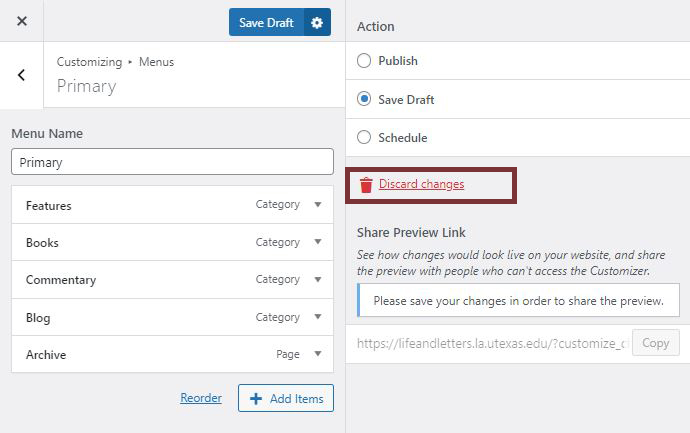
8. To revert your changes, click on discard changes.
9. Click on “Publish” to save all your changes.
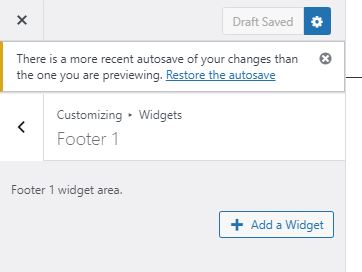
! Please contact web developer for Footer 1 widget edits !